Official GuideApp Store Verification

Shadowrocket for iPadSetup and Rule Configuration Guide

A rule-based routing client for iPhone and iPad, available as a one-time purchase on the App Store. Import your existing subscription or server details, then configure the connection.

Global Routing DOMAIN-SUFFIX On Demand
iPhone iPad Mac Apple TV App Store
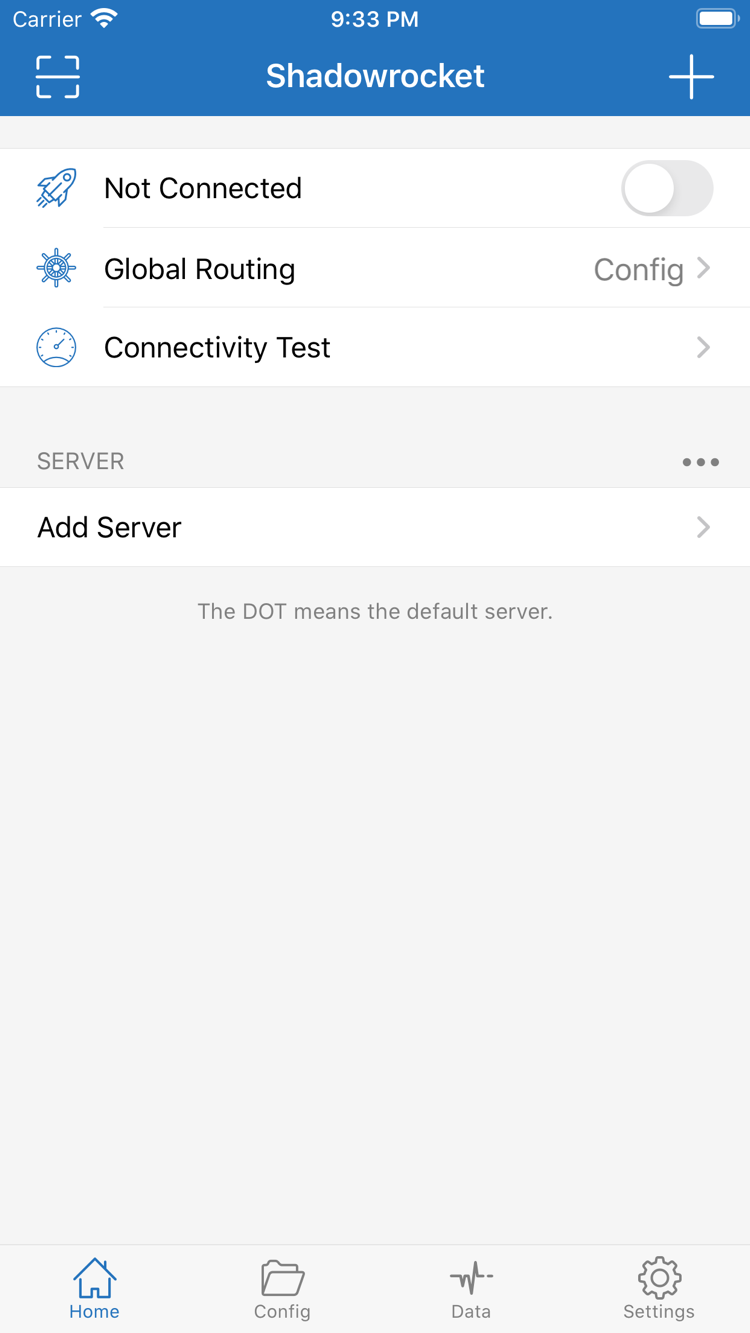
Official Shadowrocket Home screenshot showing connection status, Global Routing, Connectivity Test, and the server list

Features and settings

From connection details to rule-based routing

Server details, Global Routing, and Config determine where to connect, which routing mode to use, and how each request is matched. Understand these three layers before changing individual settings.

Read the rule reference →
DOMAIN-SUFFIX,example.com,PROXY
FINAL,DIRECT

Choose policies by condition and order

Rule-based routing lets you handle domains, IP ranges, and fallback traffic differently within one configuration. In Home, set Global Routing to Config, check which Config file is active, then arrange rules from top to bottom. DOMAIN-SUFFIX matches domain suffixes; IP-CIDR matches address ranges. PROXY, DIRECT, and REJECT are rule policies, not server addresses. Put more specific conditions first and FINAL last. After making changes, test a request that should match a rule; the connection toggle alone cannot confirm that routing is working as intended.

ConfigGlobal RoutingFINAL

The three Global Routing modes

Config follows rules in the active configuration file and is the main mode for rule-based routing. Proxy routes applicable traffic through the proxy mode; Direct handles applicable traffic in direct mode. These names describe how traffic is handled, not whether a server is connected. Even with the Home switch on, choosing Direct does not mean requests are going through the selected server.

For initial testing, choose Proxy to check the basic connection to an existing server, then switch back to Config to verify routing. If requests work in Proxy but fail in Config, focus on the active configuration file, policy names, and rule order. If both modes fail, check the network, authentication, and transport settings first. Avoid changing many rules at once. Testing one variable at a time makes results easier to interpret and lets you restore the last working setup.

Devices and getting Shadowrocket

Get Shadowrocket on iPhone and iPad

Get Shadowrocket on either device from the App Store. Refer to the App Store listing for system requirements, compatibility, and whether a purchase can be used across devices.

Shadowrocket is also available for Mac and Apple TV on the same App Store. Refer to the listing for compatibility.

When reviewing and editing a longer configuration on iPad, use the rule reference to understand each section before changing the active file. On iPhone, recheck the selected server and Global Routing in Home. Network conditions, VPN permissions, and active settings can differ between devices, so test the same configuration on each one. Matching file names alone are not enough to complete the check.

The system permission prompt shown when you connect for the first time is part of setting up the VPN configuration. Confirm that the request comes from Shadowrocket, then follow the system prompts. If a connection is blocked later, check the existing VPN configuration and app status in system settings. App purchases are managed by the App Store, while access to servers depends on your existing service; verify these separately.

View the getting started steps →

First-time setup sequence

Import, choose a mode, and test the connection

Before you begin, have your existing subscription or server details ready. These three steps outline the basic process. For field-by-field instructions and troubleshooting, read the full guide.

Read the full guide →
01 / Add Server

Add an existing server or subscription

In Home, open Add Server. If you have a subscription URL, choose Subscribe. To enter details manually, choose Type first, then check Host, Port, and authentication settings. After saving, check the SERVER list to confirm the expected details were imported; do not rely on the save action alone.

02 / Global Routing

Check the current mode and configuration

Select the server you want to use, then check Global Routing. For rule-based routing, choose Config and verify which file is active in Config. Importing a subscription does not configure all your rules. Do not change the mode and multiple settings at once without recording their original values.

03 / Connectivity Test

Turn on the connection and check requests

Turn on the connection switch in Home and allow the VPN configuration when prompted by the system. Then check Connectivity Test and make a real request to verify that the target is reachable. If the result is unexpected, note the mode and error message, then troubleshoot the network, server settings, and rules in that order.

App authenticity and purchase details

Verify the listing before purchasing

Shadowrocket is a closed-source commercial app. The App Store manages its availability, purchase history, and updates. To verify the listing, check the developer, official app icon, and app ID together.

Verified App Store listing App ID 932747118 One-time purchase
Verify / Developer and app ID

Check all three details

Official Shadowrocket app icon

Developer: Shadow Launch Technology Limited
App ID: 932747118

Open the product page rather than relying on the name shown in search results. Compare its icon with the official icon here, then check the full developer name and id932747118 in the product URL. Once all three match, review the price and compatibility details to avoid selecting a similarly named app.

Store / Availability and compatibility

Refer to the current App Store listing

Listing visibility, currency, and purchase conditions may vary by storefront. If a search returns no results, check your current App Store account region and the product page rather than assuming the app is unavailable. System requirements are always as listed on the App Store page. Before purchasing, confirm that your device is included in the compatibility information.

Changing your account region is subject to Apple's account requirements and existing purchase arrangements. Review the information in your account settings before deciding. Do not repeatedly change account settings just to find a search result; first verify the details on the correct product page.

Purchase / What the price covers

One-time app purchase ≠ connection service

The US storefront lists a reference price of $2.99 as a one-time purchase. The actual price and currency are shown on the App Store at the time of purchase. This fee covers use of the app; it does not provide a server address, subscription credentials, or connection service. After purchasing, you still need to import your own existing subscription or server details.

This site does not provide, sell, or recommend servers or subscriptions. For app purchase issues, check your App Store order and account history. For an expired subscription or failed server authentication, check the status of your existing service. Separating these costs and access rights helps you find the right place to troubleshoot.

Restore / Purchases and updates

Restore purchases and configuration separately

To restore the app on iPhone or iPad with the same Apple ID, first check your App Store purchased apps. Refer to the App Store listing for the availability of universal purchase and Family Sharing. If the listing prompts you to buy, confirm that you are using the account associated with the original order and check the product ID before paying again.

Reinstalling restores the app itself only. Check subscription URLs, configuration files, and VPN permissions on each device based on your backups or sync settings. App updates are delivered through the App Store. If you need to troubleshoot a behavior change after an update, first review the current mode and configuration, then repeat the same verification steps.

Keep a recoverable copy of your configuration

Before importing a new configuration, changing rules, or switching devices, make sure you have a recoverable copy of the existing configuration. You can note the file's purpose, selected policies, and reasons for changes, but do not store subscription credentials in public notes. If something goes wrong, return to the most recently verified working state and compare changes one at a time. Repeatedly deleting and recreating settings can make the original issue harder to trace.

This page is the configuration hub for the official Shadowrocket guide, and this is the official site. For field-by-field instructions, see the tutorial; for rule priority, FINAL, and configuration structure, see the rule reference. These paths cover practical setup and underlying concepts—you do not need to change every setting before your first connection.

Read the full app verification guide →

Continue reading

Purchasing, choosing a server, and first launch

Choose a guide for the step you are on. Resolve purchase and permission questions first, then check whether your existing server connects, and finally configure rules and automatic connection conditions.

Browse all articles →